Schedule Pro logo Schedule Pro

Gantt chart

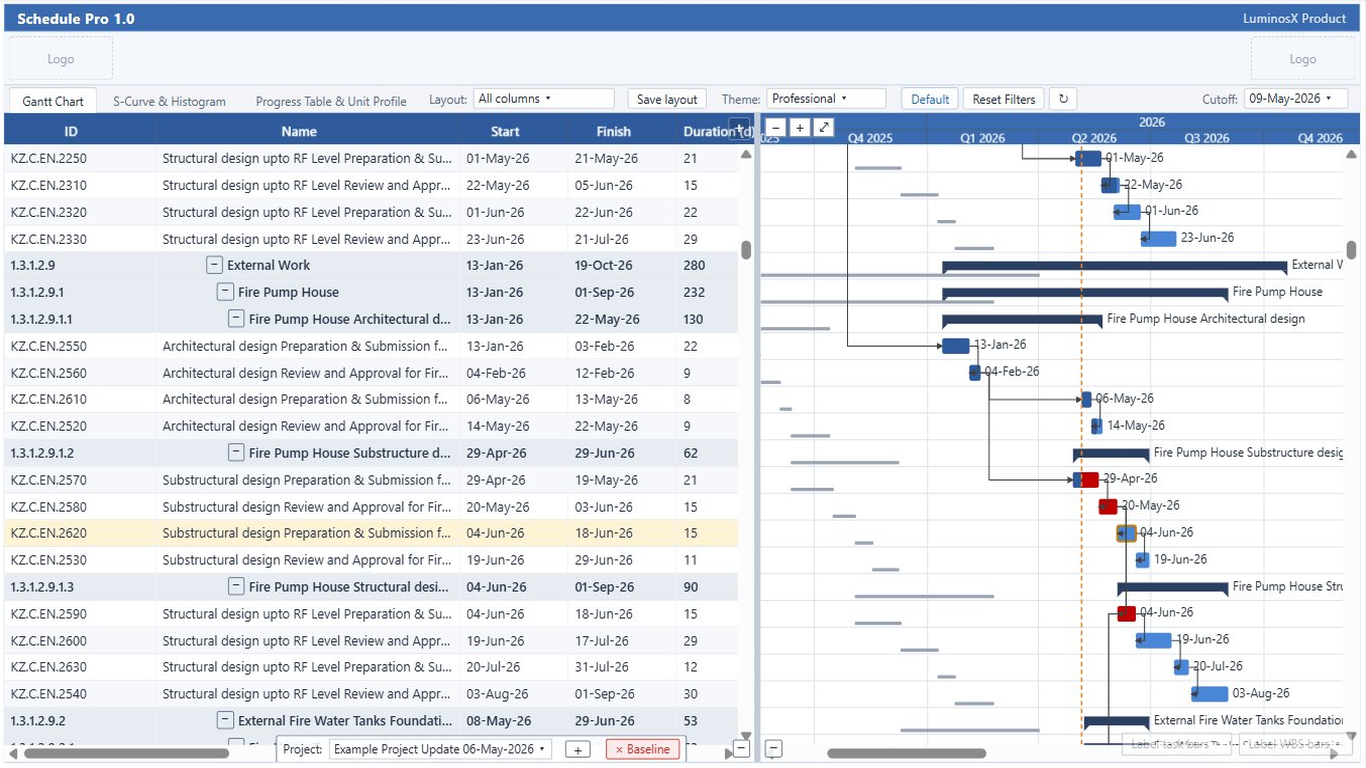
A Primavera-style Gantt with a hierarchical, collapsible WBS grid alongside a synchronized timeline. It reads your Primavera P6 XER directly and renders activities, relationships, baselines, and the critical path the way schedulers expect.

Gantt Chart Manual ⤓
Schedule Pro Gantt chart with WBS grid, timeline, and critical path in Power BI

Abilities & formatting

assets/gantt-timeline.png

Synchronized timeline

The WBS grid and the time-scaled bar area scroll together. The timeline groups into day, week, and month tiers so a multi-year programme stays readable.

How: the time axis follows the schedule’s date range automatically; switch zoom tiers from the toolbar.
assets/gantt-fit.png

Fit-to-page on open

When the report loads, the timeline scales so the whole schedule is visible without manual zooming, then you can zoom in for detail.

How: Format pane → Gantt → set the default zoom to auto for fit-to-page on open.
assets/gantt-bars.png

Activity & WBS summary bars

Activities draw as task bars; WBS rows roll up to summary bars that span their children. Bar shapes are configurable for each.

How: Format pane → Gantt Bars → choose the WBS and activity bar shapes and colors.
assets/gantt-datadate.png

Data-date / cut-off marker

A vertical marker shows the project data date (progress line), so planned-vs-actual is obvious at a glance.

How: the data date comes from the XER; pick or highlight a cut-off in the selection list when needed.
assets/gantt-deps.png

Dependency lines

Finish-to-Start, Start-to-Start, Finish-to-Finish, and Start-to-Finish relationships draw between bars with routing that follows the logic.

How: Format pane → Gantt → Dependencies to show lines and set their color.
assets/gantt-columns.png

Configurable columns

Resize, reorder, and show or hide grid columns to build the view your team reads from.

How: drag column edges to resize, drag headers to reorder, and use the column picker to hide or show fields.
assets/gantt-progress.png

Progress shading

Bars shade by percent complete so in-progress and finished work is distinguishable at a glance.

How: percent complete is read from the schedule and drawn on each activity bar.
assets/gantt-wbs.png

Collapsible WBS & level coloring

Expand and collapse the work-breakdown hierarchy, and color rows by WBS level to make the structure pop.

How: click the row triangles to collapse; set per-level colors, which persist with a saved layout.
assets/gantt-baseline.png

Baseline bars

Pair a baseline XER with the current schedule to draw baseline bars under the current ones and see slippage directly.

How: import a baseline file, then enable the baseline bars in the Format pane.
assets/gantt-critical.png

Critical-path highlighting

Critical activities are emphasized so the driving path stands out from float-bearing work.

How: Format pane → Gantt → enable critical-path highlighting and pick its color.
assets/gantt-milestones.png

Milestones & markers

Zero-duration milestones render as diamonds, and date markers can call out key events on the timeline.

How: milestones come from the schedule; markers are configured in the Format pane.
assets/gantt-labels.png

Bar labels

Choose what each bar shows — activity name, dates, percent complete — without crowding the timeline.

How: Format pane → Gantt Bars → bar label source.
assets/gantt-themes.png

Themes

Primavera, Microsoft Project, light, and dark themes, plus custom header logos and colors to match your organization.

How: pick a theme from the toolbar or Format pane, then override colors as needed.
assets/gantt-layout.png

Save & restore layout

Capture a full layout — column widths, order, hidden columns, and WBS coloring — and restore it later or share it across reports.

How: use the layout save/restore controls; the layout persists between sessions.